

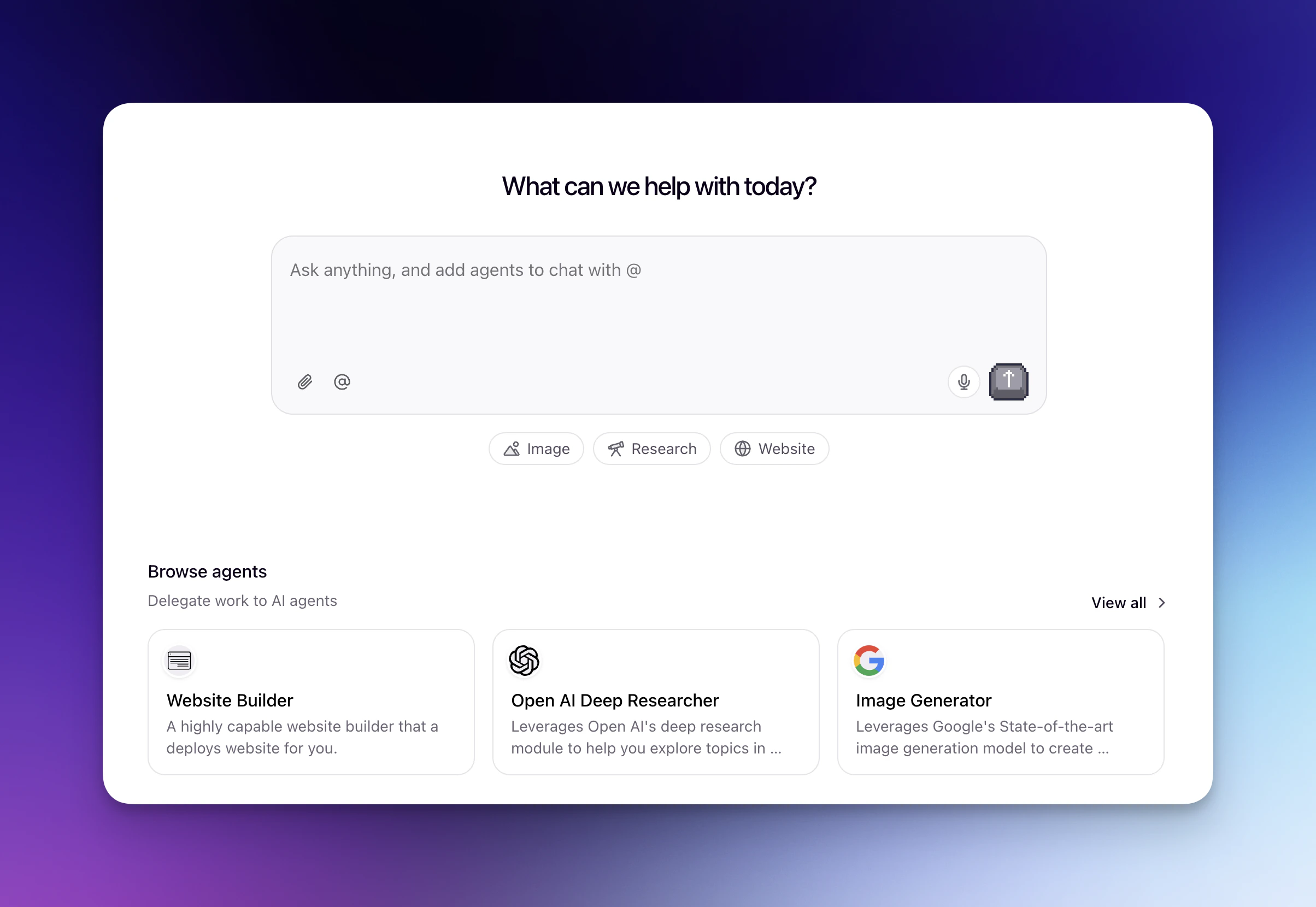
Open Relevance Chat
Start chatting now at chat.relevanceai.com — works on desktop and mobile
Using different LLMs in Chat
You can select the LLM you want to use in Chat:- Click the name of the LLM you’re currently on (or Auto if you’ve selected ‘Auto’ previously) in the top right of Chat
- Search for and select the model you wish to use
- Select ‘Auto’ to allow Chat to select the best LLM for your request
Managing sidebar panels
The Chat interface includes two collapsible sidebar panels:- Left panel — chat history
- Right panel — SuperAgent panel
Resizing panels
Drag the divider between the chat area and a sidebar panel to adjust its width. Release to set the new size.Collapsing and hiding panels
Each panel supports three display states:- Expanded — full panel visible with all content
- Icon-only — collapsed to show just icons, saving horizontal space
- Hidden — panel removed from view entirely
Keyboard shortcuts
| Action | Mac | Windows |
|---|---|---|
| Toggle left panel (chat history) | Cmd+\ | Ctrl+\ |
| Toggle right panel (SuperAgent) | Cmd+B | Ctrl+B |
Panel preferences
Your panel size and visibility settings are saved automatically. The next time you open Chat, your panels will appear exactly as you left them.Using Agents in Chat
Simply @ mention any Agent you have access to in your project, and Chat will seamlessly integrate their capabilities into your conversation. Hover over any Agent in the @ menu to see a pop-up with its name, description, and other details — making it easy to pick the right one without leaving the chat.Individual Agents
Use a single Agent for specific tasks
Multiple Agents
Combine different Agents in the same conversation for complex workflows
Workforces
Leverage teams of Agents working together on complex tasks
Marketplace Agents
Use pre-built Agents cloned from the Marketplace
Saved Prompts
Saved prompts are currently in limited availability and being rolled out to select customers.
Saving a prompt
Save any prompt from your Chat conversations to make it available to all users in your project through the @ menu.- Start a new conversation and enter the prompt you want to save
- After sending your prompt, click the bookmark icon that appears under it
- Give the prompt a descriptive name and click ‘Save’
For Enterprise customers, the ability to create and manage saved prompts can be controlled through role-based access controls (RBAC). Learn more about RBAC and user permissions.
Using saved prompts
All users in the project can access and use saved prompts in their Chat conversations. Saved prompts appear alongside Agents in the @ menu, making it easy to reuse standardized prompt templates.- Type @ in the chat input field to open the menu
- Click ‘Prompts’ in the pop-up that appears
- Select the saved prompt you want to use from the list
Managing saved prompts
To delete a saved prompt:- Type @ in the chat and click ‘Prompts’ in the pop-up
- Click the ‘X’ button next to the prompt you want to remove
- Click ‘Delete’ on the confirmation pop-up to confirm deletion
Project files
You can search and insert files from your project’s file system directly in Chat using the @ menu. Files appear alongside agents, workforces, and saved prompts in results, showing the file icon, name, and path.Searching for project files
- Type @ in the chat input field followed by a search query
- Browse the results — files appear alongside agents, workforces, and saved prompts, showing the file name and path
- Select a file to insert its file path into your message
Providing Feedback on Responses
Help improve your AI agents by rating their responses with thumbs up or thumbs down. Your feedback helps identify what’s working well and what needs improvement, making agents more effective over time.Rating a response
Once an AI assistant message finishes generating, you can rate it directly in the Chat interface.- Wait for the assistant’s response to complete
- Look for the thumbs up and thumbs down icons that appear alongside the copy button at the bottom of the message
- Click thumbs up for helpful responses or thumbs down for responses that need improvement
- Optionally, add written feedback in the modal dialog that appears to provide more context
When to provide feedback
Feedback is most valuable when it helps identify patterns or specific issues:- Thumbs down with written feedback - Use this when a response is incorrect, incomplete, or unhelpful. Describe what went wrong to help improve the agent’s performance
- Thumbs up - Use this to reinforce good behaviors when a response is particularly helpful, accurate, or well-formatted
- Written feedback - Add details about what worked or didn’t work to make your feedback more actionable
Chat agents
You can also @ mention Agents built specifically for Chat.Website Builder
Build websites with our Website Builder Agent
Deep Researcher
Perform deep research with our Deep Researcher Agent with OpenAI
Image Generator
Generate images with our Image Generator Agent
Slide Builder
Create presentations with our in-built Slide Builder
Supported file types in Chat
Chat empowers you to work with a wide range of file types, both for input and output. Upload documents, images, and data files to provide context to your conversations, and generate new files based on your Agent’s responses or built-in Agent outputs. Whether you’re analyzing spreadsheets, processing PDFs, or creating presentations, Chat seamlessly handles file operations across different model providers. Here’s a comprehensive breakdown of supported file types by model provider:File size limits by provider
File size limits vary by model provider. Each provider has limits for individual files and combined attachments in a single message.| Provider | Max per file | Max combined attachments |
|---|---|---|
| OpenAI | 32MB | 50MB |
| Anthropic | 32MB | 32MB |
| Gemini | 32MB | 50MB |
Anthropic has a lower combined attachment limit (32MB) compared to OpenAI and Gemini (50MB). Keep this in mind when uploading multiple files in a single message.
File capabilities
Reading - Upload and process files to provide context to your conversations \
Create/Export - Generate new files or export content based on Chat responses
OpenAI
OpenAI
Document files:
.docx(32MB max) - Reading available, create/export available.docxwith images (32MB max) - Reading not available, create/export available.xlsx(32MB max) - Reading available (converted to text), create/export available.csv(32MB max) - Reading available, create/export available.pdf(32MB max) - Reading available, create/export available.pdfwith images (32MB max) - Reading available, create/export available.txt(32MB max) - Reading available, create/export available.md(32MB max) - Reading available, create/export not available (available on request)
.png(32MB max) - Reading available, create/export available.jpg/.jpeg(32MB max) - Reading available, create/export available (exported as PNG)
- Maximum per file: 32MB
- Maximum combined attachments: 50MB
.pptx- Reading not available, create/export not available
Anthropic
Anthropic
Document files:
.docx(32MB max) - Reading available, create/export available.docxwith images (32MB max) - Reading not available, create/export available.xlsx(32MB max) - Reading available (converted to text), create/export available.csv(32MB max) - Reading available, create/export available.pdf(32MB max) - Reading available, create/export available.pdfwith images (32MB max) - Reading available, create/export available.txt(32MB max) - Reading available, create/export available.md(32MB max) - Reading available (limited), create/export not available (available on request)
.png(32MB max) - Reading available, create/export available.jpg/.jpeg(32MB max) - Reading available, create/export available (exported as PNG)
- Maximum per file: 32MB
- Maximum combined attachments: 32MB ⚠️ Lower than other providers
.pptx- Reading not available, create/export not available
Gemini
Gemini
Document files:
.docx(32MB max) - Reading available, create/export available.docxwith images (32MB max) - Reading not available, create/export available.xlsx(32MB max) - Reading available (converted to text), create/export available.csv(32MB max) - Reading available, create/export available.pdf(32MB max) - Reading available, create/export available.pdfwith images (32MB max) - Reading available, create/export available.txt(32MB max) - Reading available, create/export available.md(32MB max) - Reading available, create/export not available (available on request)
.png(32MB max) - Reading available, create/export available.jpg/.jpeg(32MB max) - Reading available, create/export available (exported as PNG)
- Video:
.mp4,.mpeg,.mov,.avi,.flv,.mpg,.webm,.wmv - Audio:
.wav,.mp3,.aiff,.aac,.ogg,.flac
- Maximum per file: 32MB
- Maximum combined attachments: 50MB
.pptx- Reading not available, create/export not available
Additional information
If a file contains textual information, we convert it to a text file before uploading to the model.For more detailed information about which models can process which files in agents, see our LLM integrations pages.
Frequently asked questions (FAQs)
How does Chat usage affect my credits?
How does Chat usage affect my credits?
Chat credit usage will show up in the Plan & Billing credit monitoring section as ‘Chat Orchestrator’.You’ll be charged credits based on:
- The LLM model you’re using in Chat
- How much you use Chat (number of messages and interactions)
Can I use different LLMs in Chat?
Can I use different LLMs in Chat?
Yes, you can select the LLM you want to use in Chat by following these steps:
- Click on the cog icon in the top right of your screen
- Choose the ‘Chat Model’ on the pop-up that appears
Can I use Relevance Chat on mobile?
Can I use Relevance Chat on mobile?
Yes! While the main Relevance AI platform (app.relevanceai.com) is not available on mobile devices, you can use Relevance Chat by visiting chat.relevanceai.com in a browser on your mobile device.A dedicated Relevance Chat mobile app is also on the way!
Can Chat remember my previous conversations?
Can Chat remember my previous conversations?
Yes! Chat Memory allows Relevance Chat to remember and reference your recent conversations. You can ask questions like “What did I ask about earlier?” or “Who did I compare X against recently?” and get contextual answers based on your chat history.Important limitations: Chat Memory only remembers history within the same project, and you can only access your own chat history, not other users’ conversations in the same project. This is different from Agent memory, which is conversation-specific memory within individual Agent interactions.
How do I switch between projects in Chat?
How do I switch between projects in Chat?
You can switch between projects using the project selector in the bottom left of the Chat interface. You can also use Cmd + K (Mac) or Ctrl + K (Windows) for quick access. When you switch projects, you’ll have access to all agents available in that project.For more details, see Learn how to switch projects in Chat.
What keyboard shortcuts are available in Chat?
What keyboard shortcuts are available in Chat?
Chat supports the following keyboard shortcuts:
| Action | Mac | Windows |
|---|---|---|
| Toggle left panel (chat history) | Cmd+\ | Ctrl+\ |
| Toggle right panel (SuperAgent) | Cmd+B | Ctrl+B |
| Switch projects | Cmd+K | Ctrl+K |
Which Agents will show up in Chat - all the Agents in my organization, or just the ones in a specific project?
Which Agents will show up in Chat - all the Agents in my organization, or just the ones in a specific project?
You’ll be able to select the project you want to use Chat on in the bottom left. You’ll be able to use all of the Agents you have access to in this project. If you want to access Agents in another project, you’ll need to switch to that project in the bottom left.
Can I call multiple Workforces in the same Chat?
Can I call multiple Workforces in the same Chat?
Not at this time, but we hope to add this feature soon!
Can I call a Workforce and an Agent in the same Chat?
Can I call a Workforce and an Agent in the same Chat?
Not at this time, but we hope to add this feature soon!
Follow along on YouTube
- Why We Built Chat
- Building Multi-Agent Workflows